Set up IPTV on an Android TV or Google TV box
Android box for IPTV, or a Google TV device: pick a player from the Play Store, add your login, and tune the box so live channels start fast and stay smooth.
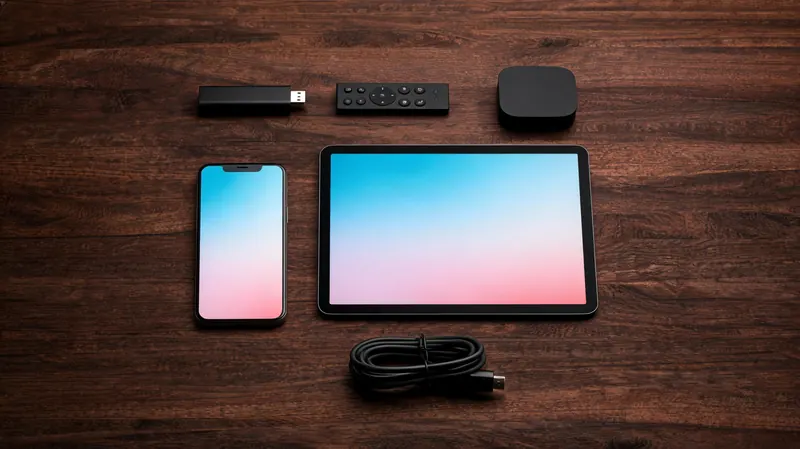
An Android box for IPTV earns its place by running proper TV player apps from the Play Store: you install TiviMate or IPTV Smarters Pro, type in your login, and 25,000+ channels with a full TV guide appear on any TV with an HDMI port. This guide covers which boxes work well, the specs that matter, the setup itself and the player settings that keep live channels quick.
Which Android TV and Google TV devices work well
The safest choice is a device running Android TV or Google TV with Google’s certification. Certified devices have the real Play Store with TV apps, a remote-friendly home screen and regular updates. Nvidia Shield, Chromecast with Google TV (no longer sold new, but still in many homes) and Google’s newer Google TV Streamer are all good examples, and many TVs now run Google TV built in, in which case the same steps apply.
Be careful with uncertified no-name boxes sold as “IPTV boxes”. Many run an old version of Android made for phones, receive no security updates, have weak Wi-Fi and sometimes arrive with unknown apps already installed. Some work well, but you cannot tell which until you have bought one, and a certified device costs little more.
What specs matter for IPTV
| Spec | Workable | Better | Why it matters |
|---|---|---|---|
| Memory (RAM) | 2 GB | 3 GB or more | A long channel list and the TV guide sit in memory while you browse |
| Storage | 8 GB | 16 GB or more | Player, guide data and updates; recordings need far more, or a USB drive |
| Network | 5 GHz Wi-Fi | An Ethernet port | Evening stability matters more than the headline speed |
| Video decoding | HEVC (H.265) in hardware | HEVC plus HDR support | Many 4K channels use HEVC; without hardware decoding they stutter |
| Software | Android TV | Google TV, recent version | TV apps from the Play Store, security updates, a remote-friendly interface |
The software line matters more than it looks. A box running Android TV shows the TV version of the Play Store, where TiviMate and the TV editions of other players appear. A box running phone Android shows the phone store instead, where TV players may be listed as incompatible and apps expect a touchscreen. For 4K channels, our 4K page explains what the TV, the box and the broadband each need.
Set up IPTV on an Android TV or Google TV box
Update the box first
On Google TV, open Settings › System › About › System update; on older Android TV boxes, look under Settings › Device Preferences › About. Menu names vary between versions. Then open the Play Store, go to your profile icon and update any apps waiting.
Install a player from the Play Store
Search for TiviMate and choose TiviMate IPTV Player, published by Armobsoft. If you prefer Smarters, search for it and compare the developer name with the one on the Smarters developer’s own website, because many look-alikes share the name. Select Install, then Open.
Add your login
In TiviMate, choose Add playlist › Xtream codes; in Smarters, Login with Xtream Codes API. Type the server address with http:// and the port number, then the username and password exactly as sent. The TiviMate setup guide and IPTV Smarters Pro guide show every screen.
Let the channel list and guide load
The first load can take a few minutes on a long list. Leave the player open until the guide grid shows programme names, then hide the channel groups you will never watch so the list stays quick.
Tune the player
Set the buffer, the decoder and auto-start as described in the next section. Five minutes here saves most of the stutters people blame on the service.
Use a cable if you can
If the box has an Ethernet port and the router is within reach, use it. Allow about 10 Mbps for each HD stream and 25 Mbps for each 4K stream, measured on the box in the evening; the buffering guide shows how to test it.
TiviMate or IPTV Smarters Pro on a box?
On a certified box, TiviMate is our first suggestion for the main TV. Its guide grid reads well from the sofa, channel changes are quick, and Premium adds catch-up from the guide and recording to a USB drive. IPTV Smarters Pro suits homes that mostly watch films and series, because the library gets its own sections with posters and resume points.
You do not have to choose for ever. Both players take the same login, so install both, try each for an evening during the trial and keep the one that feels right. Only streams that are playing count as screens, so an idle second app costs nothing.
Settings that keep live channels quick and smooth
Buffer size
The buffer is how much of the stream the player stores before it starts playing. In TiviMate it sits under Settings › Playback › Buffer size; Smarters keeps its playback choices in its player settings.
Start in the middle. Go larger if channels stutter after they start, smaller if they take too long to open.
Hardware or software decoder
Leave decoding on hardware, which is the default and the right choice on certified boxes and the Shield. If one channel plays sound with a black or blocky picture, switch that player to software decoding to test, then switch back if it makes no difference. Menu names vary between versions.
Auto-start and a lighter home screen
TiviMate can open by itself when the box starts, so the TV goes straight to live channels; the option is in its general settings. On Google TV, Apps only mode in your account settings removes the recommendation rows from the home screen, which makes slower boxes noticeably snappier.
Date, time and storage
Set the date and time to automatic under Settings › System › Date & time: a wrong clock shifts the TV guide and can make logins fail. If the box slows down over time, clear the player’s cache under Settings › Apps, not its data, which would remove your login.
MAG and Formuler boxes: portal and MAC address
MAG boxes do not use a player app. They connect to a portal, and the line is registered to the box’s MAC address. Send us the MAC address printed on the sticker under the box (on MAG boxes it starts with 00:1A:79), and we register it and send you the portal address.
On the box, open Settings › Servers › Portals, type a name and the portal address in the first portal slot, save and restart. Menu names vary with the firmware version. Formuler boxes come with their own MyTVOnline app, which works by portal and MAC address in the same way, and many Formuler models also run Android players if you prefer an app login.
Nothing in this guide needs the box rooting, modifying or loading with extra apps from unknown sources. If a seller offers a box with channels already installed, walk away: you cannot tell what else is on it or who will keep it working.
Common problems on Android boxes
- The app crashes, keeps loading or shows a blank list: the Smarters fixes for Android TV boxes apply to most players, in the order that solves most cases.
- HD is fine but 4K stutters: check that the box decodes HEVC in hardware and that the connection reaches about 25 Mbps on the box itself.
- The guide is an hour out: set the date, time and time zone to automatic, then refresh the guide in the player.
- The Play Store says TiviMate is not compatible: the box runs phone Android; Smarters, or a certified device, is the way round it.
Test the box with your own channels on the free 24-hour trial before you choose a plan; the plans cover one to five screens. If you are still choosing an app, our round-up of Android IPTV apps compares them on phones, tablets and TVs.
Android box for IPTV questions
Is a Firestick or an Android box better for IPTV?
Both work well with the same players. A certified Android TV or Google TV box installs TiviMate straight from the Play Store and often has an Ethernet port, which helps in the evening. A Firestick is cheaper and smaller but needs the Downloader step. If you already own one, use it; if you are buying, pick whichever has the better connection to your router.
Can I use a cheap phone-style Android box for IPTV?
Often yes, but with limits. These boxes run Android made for phones, so the Play Store may list TiviMate as incompatible and some apps expect a touchscreen. IPTV Smarters Pro usually works. Expect fewer updates and weaker Wi-Fi than on a certified device, and avoid boxes sold with channels or unknown apps preinstalled, because you cannot check what they do.
How much RAM does an Android box need for IPTV?
Two gigabytes is workable and three or more is better. The player holds the channel list and the TV guide in memory, and with a line-up as long as ours, boxes with less memory feel slow in the guide and take longer to change channel. Storage matters too: eight gigabytes is the minimum, sixteen gives room for updates and the guide.
Why does the Play Store say TiviMate is not compatible with my box?
Because TiviMate is listed for Android TV devices, and your box probably runs the phone version of Android. The Play Store then hides or blocks TV-only apps. Install IPTV Smarters Pro instead, which runs on phone Android, or move to a certified Android TV or Google TV device if you want TiviMate's guide and recording features.
Do I need to root or modify an Android box for IPTV?
No. Every step in this guide uses the normal Play Store and the player's own settings. Rooting removes security protections and can stop updates, and it does nothing for picture quality or stability. If a seller says a box needs special firmware to watch IPTV, treat that as a warning sign and buy a certified device instead.