Install TiviMate on a Firestick, Android TV or Windows PC
Install TiviMate on a Firestick, an Android TV or a Google TV box, add your playlist and the TV guide, and see what to do on a Windows PC, where TiviMate has no version of its own.
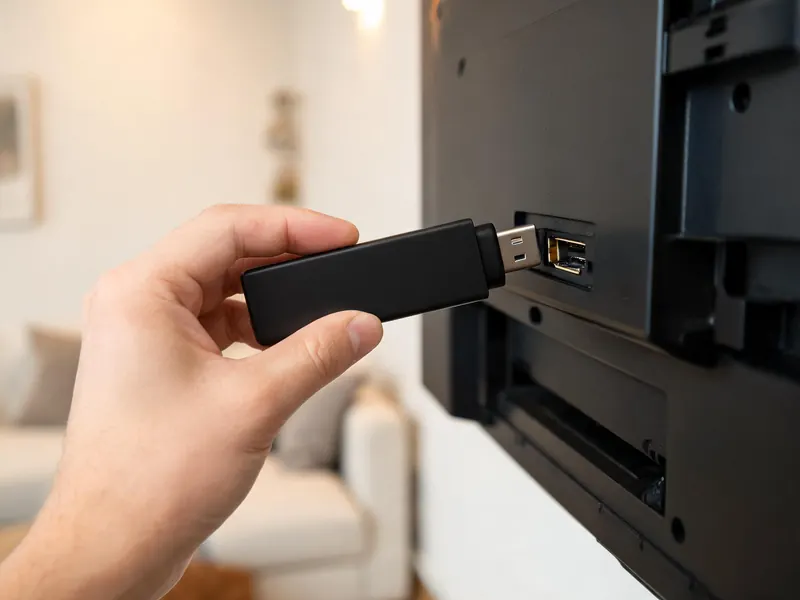
To install TiviMate on a Firestick you use the Downloader app, because TiviMate is not in the Amazon Appstore; on an Android TV or Google TV box it comes straight from the Play Store. After that the screens are identical. This guide covers both installs, the playlist and TV guide set-up, Premium through the TiviMate Companion app, and what is possible on a Windows PC.
Where TiviMate runs, and where it does not
TiviMate is built for Android TV and a remote control. It runs on Fire TV Sticks and the Fire TV Cube running Fire OS, on Android TV and Google TV boxes, on Nvidia Shield and on Chromecast with Google TV. Its developer says it is not designed for phones or tablets.
There is no TiviMate for iPhone, iPad or Apple TV, none for Samsung or LG smart TVs, none for Fire TV sticks that run Vega OS (the Fire TV Stick 4K Select and the 2026 editions of the Fire TV Stick 4K and Fire TV Stick HD), and no Windows version. Those screens have their own players, covered in our other setup guides; for a PC, read the Windows section below.
TiviMate reads three kinds of playlist: Xtream codes, an M3U link and a Stalker portal. Use the Xtream codes option with the login we send: it brings the channels, the TV guide and catch-up information in one step.
Install TiviMate on a Firestick
If Downloader is already on the stick and allowed to install apps, this takes two minutes. If not, the first three steps of the Firestick setup guide cover Downloader and Developer options.
Open Downloader and enter the address
On Downloader’s Home tab, type the TiviMate download address or the Downloader code we sent with your login on WhatsApp, then select Go. We never print a code on this site, because codes change and copies circulate; the TiviMate Downloader code article explains how to check one.
Install and tidy up
When the download ends, select Install, then Done. Let Downloader delete the installation file: the app stays, and the stick keeps its storage.
Move TiviMate to the front
Open the apps tile on the home screen, highlight TiviMate at the end of the list, press the options button (three lines) and choose Move to front, so it sits on the home row.
Install TiviMate on Android TV or Google TV
Open the Play Store on the box, search for TiviMate and choose TiviMate IPTV Player, published by Armobsoft. Select Install, then Open. Nothing needs switching on in the settings, and updates arrive through the Play Store like any other app.
If the Play Store says the app is not compatible with your device, the box is probably running phone-style Android rather than Android TV. Our Android TV box guide explains the difference and what to do about it.
Add your playlist and choose your groups

Choose Add playlist
On first launch TiviMate goes straight to Add playlist. Later, you find it under Settings › Playlists › Add playlist.
Pick Xtream codes and type the server address
Choose Xtream codes. Type the server address exactly as sent, starting with http:// and ending with a colon and the port number, then select Next.
Enter the username and password
Type both exactly, capitals included, and select Next. TiviMate checks the login with the server; if it answers with error 401, the server refused the details, and the error 401 guide shows how to find the mistake.
Name the playlist and finish
Give the playlist a short name and confirm. TiviMate shows how many channels it found, plus films and series if you include them, and builds the channel list.
Hide the groups you will not watch
The line-up holds 25,000+ channels in groups from many countries, and a shorter list makes the guide faster. Open Settings › Playlists, select your playlist and use the option to manage or hide groups; you can also long-press a group in the channel list. Menu names vary between versions.
Prefer the M3U link? Choose M3U playlist in step 2 and type the link instead. It works, but the guide may need adding by hand, which is why Xtream is the better choice.
The TV guide
With an Xtream playlist, TiviMate fetches the TV guide from the same server automatically. The first load can take a few minutes on a long list; after that the guide refreshes on its own schedule. Open TV guide from the side menu to see the grid.
If the grid stays empty, open Settings › EPG, check that a guide source is listed under your playlist, and run an update there. If you set up with the M3U link and no guide appears, add one through Settings › EPG; ask us on WhatsApp and we send the guide address ready to type.
Channels that keep an archive show a catch-up marker in the guide. With Premium, you can open a programme that has already aired straight from the grid, for as many days back as that channel keeps.
Favourites and a tidy channel list
Long-press OK on a channel and choose to add it to favourites. A Favourites group appears at the top of the list, which is the quickest way to reach the dozen channels you actually watch. Use the channel search for anything else rather than scrolling through groups.
TiviMate Premium and the Companion app
The free TiviMate plays one playlist with the full TV guide. Premium is an upgrade sold by TiviMate’s developer, as a yearly fee or a one-off lifetime purchase, and it adds features to the player, never channels. It is entirely separate from your subscription with us.
The developer’s feature list changes from version to version, but Premium has included several playlists at once, catch-up from the guide, recording to the device’s storage, multi-view with several channels on one screen, more control over favourites, groups and the guide’s look, and other settings. TiviMate Premium compared with the free version goes through it in more detail.
Buying Premium
- On a Firestick, which has no Google Play: install TiviMate Companion from the Play Store on an Android phone, create an account and buy Premium there. Then, in TiviMate on the stick, open the Premium option in the settings and sign in with the same account.
- On a Google TV or Android TV box with Google Play, Premium can be bought inside TiviMate through Google Play, and the Companion app is not needed.
- Managing devices: one Premium account covers more than one device. The Companion app lists the devices on your account, so you can remove an old stick before adding a new one.
TiviMate Companion is not a player and shows no channels. It exists to buy Premium and manage your activated devices, and it runs on Android only, so with an iPhone alone you need a friend’s Android phone or the emulator route described below.
TiviMate on Windows: what works and what does not
There is no Windows version of TiviMate. The only way to run it on a PC is inside an Android emulator, such as BlueStacks, which runs Android apps in a window. TiviMate, and the Companion app if you want to unlock Premium from the PC, then install inside the emulator from its Play Store where they are offered, or from the address we send.
The caveats are real. TiviMate expects a remote, so you steer with the arrow keys, Enter and Escape rather than the mouse. The emulator adds load, so older laptops can stutter on HD and 4K channels, and hardware video decoding depends on the emulator.
A Premium unlock on the emulator also uses one of your device places. And Microsoft has withdrawn its own Android subsystem for Windows, so a third-party emulator is the only route left.
For most people a native Windows player is simpler and smoother. The Windows and Mac player guide compares VLC, Kodi, IPTV Smarters Pro and others, with the login steps for each.
When TiviMate misbehaves
Most faults have a short fix. Login refused: check the three fields, then see the error 401 guide linked above. Buffering in the evening: start with the network, then change Settings › Playback › Buffer size, as described in the buffering guide. Guide empty or an hour out: update the EPG and check the device’s time zone.
Test TiviMate with your own channels on the free 24-hour trial before buying Premium or a plan; the plans then run from one month to a year.
TiviMate setup questions
Why is TiviMate not in the Amazon Appstore?
Its developer publishes it on Google Play and on its own website, not in Amazon's store, so on a Fire TV it goes on through the Downloader app instead. That is a normal route on Fire OS: you allow Downloader to install apps once, then use the address or code we send. Sticks that run Vega OS, such as the Fire TV Stick 4K Select and the 2026 editions of the Fire TV Stick 4K and Fire TV Stick HD, cannot do this, because they only install Appstore apps.
Do I need TiviMate Premium to watch the channels?
No. The free version plays your playlist with the full TV guide, which is enough to judge the service during the trial. Premium adds player features such as catch-up from the guide, recording, multi-view and several playlists. Try the free version first; if you find yourself wanting those features, buy Premium from the developer through the Companion app or Google Play.
Can I move TiviMate Premium to a new Firestick?
Yes. Premium belongs to your TiviMate account rather than to one stick. Install TiviMate on the new device, open the Premium option in its settings and sign in with the same account. If you have reached the number of devices your account allows, remove the old one in the Companion app first, then sign in again on the new stick.
Does TiviMate keep my channels after I renew my plan?
Yes, as long as the login stays the same, which it normally does when you renew with us. TiviMate keeps the playlist, favourites and hidden groups, and the channels simply carry on. If we ever have to issue new details, edit the playlist under Settings › Playlists and update the username, password or server address instead of adding a new playlist.
Why does TiviMate show an empty channel list?
Usually for one of three reasons: the playlist is still loading after the first sign-in, every group has been hidden by mistake, or the plan behind the login has expired. Give the first load a few minutes, then check the hidden groups under Settings › Playlists. If the list stays empty, retype the server address with http:// and the port, and message us if it still shows nothing. The help centre lists the other causes.